Thứ Hai, 29 tháng 12, 2014

Wordpress - Advanced Custom Fields Pro

Wordpress - Advanced Custom Fields Pro


---o0o---


Advanced Custom Fields Pro là 1 wordpress plugin, giống như Advanced Custom Fields Plugin, sau khi Active thì trong admin xuất hiện thêm 1 tab Custom Fields

So với Advanced Custom Fields Plugin thì Plugin này có thêm nhưng field sau

  • Basic: Url
  • Content: oEmbed, Gallery
  • Layout: Repeater, Flexible Content

Link Advanced Custom Fields Plugin: http://www.advancedcustomfields.com/

1. Tạo Option cho Hompage

Tạo Option

Để tạo được custom file cho Homepage ta cần khai báo thêm trong function.php để thông báo cho wordpress biết ta có thêm lựa chọn sẽ thêm custom field vào đâu


if (function_exists('acf_add_options_page')) {
    acf_add_options_page( "Options" );
}
    

Sau khi thêm đoạnc code trên thì trong phần edit field sẽ xuất hiện thêm Options cho ta lựa chọn
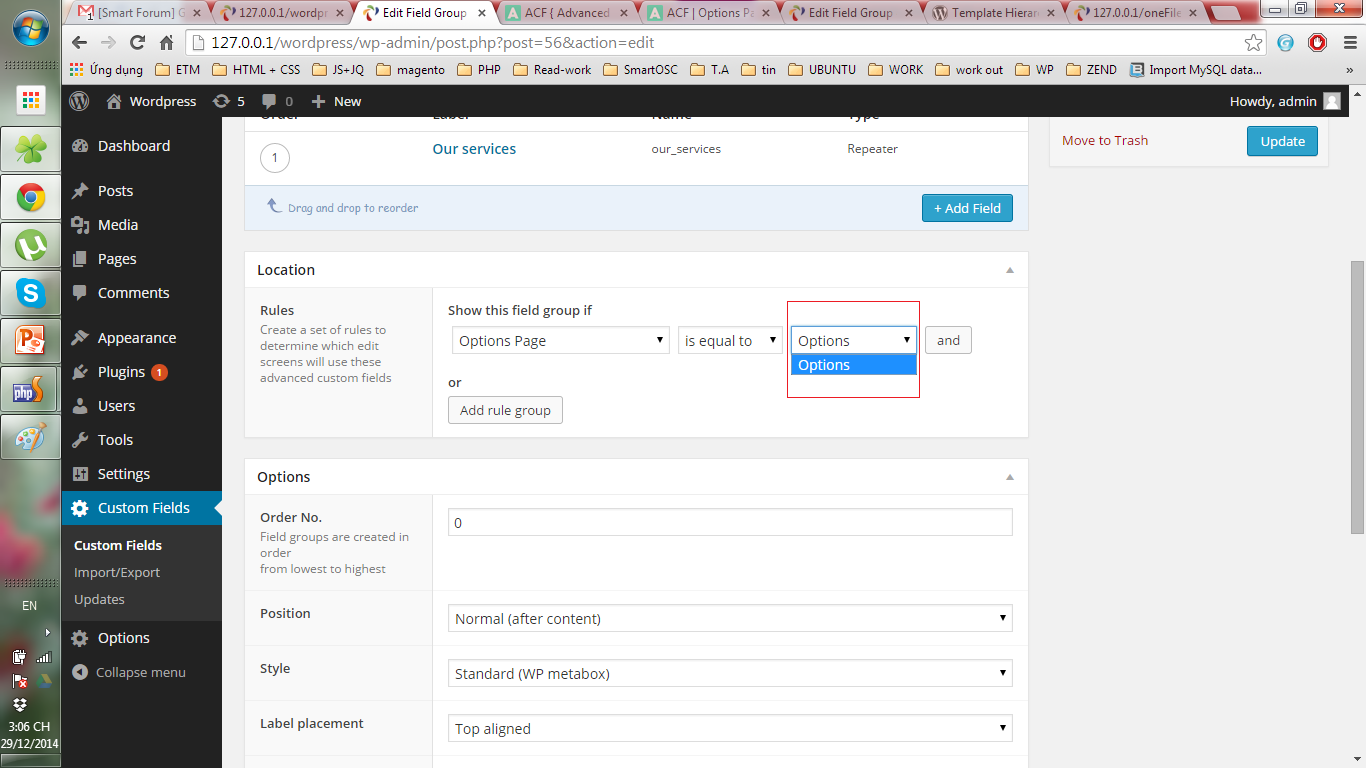
Và sẽ xuất hiện thêm 1 tab "Options" trong admin

Gọi Options ra ngoài frontend


$context['options'] = get_fields('options');
    

2. Thêm custom field cho tất cả các page

2. Tạo custom field

Tạo file page.php cho theme mới để tùy biến cho tất cả các page

Khi đó trong phần Template của Page Attributes ở trang Edit Page trong Admin sẽ thêm lựa chọn Default Template

Tạo 1 custom field mới và ở phần Show this field group if chọn như ảnh dưới
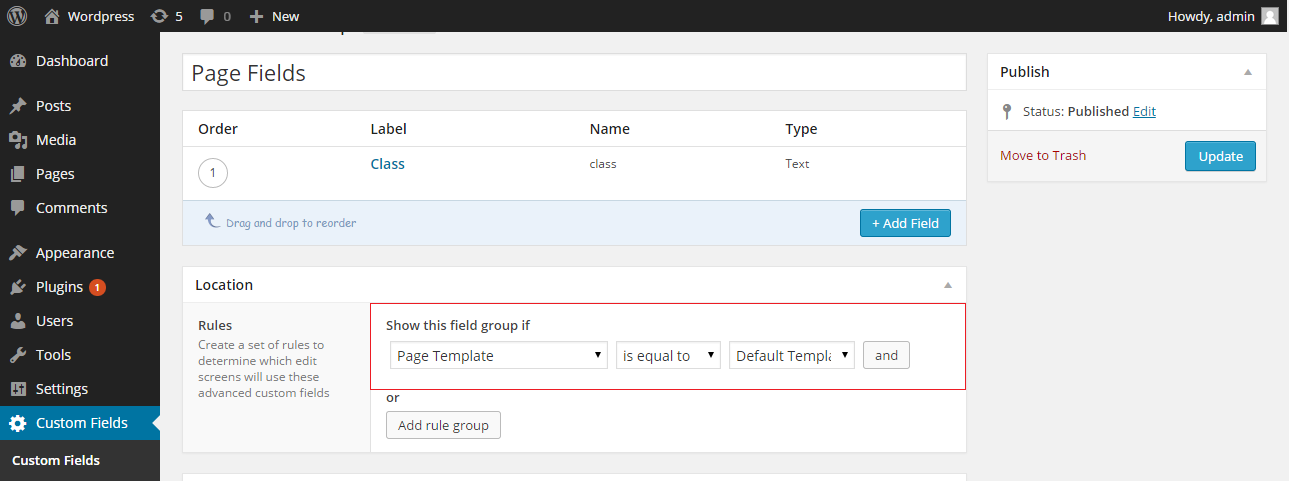
Như vậy tất cả các trang trong phần Page đều được thêm field mới

Get data

Để lấy data trong field thêm vào này chỉ cần dùng hàm get_fields(), xem chi tiết tại đây

3. Thêm custom field cho 1 page

Tạo custom field

Ví dụ ta có 1 trang Services như sau

Như vậy cần tạo 1 custom field cho trang Services để người dùng có thể chỉnh sửa được ảnh - title - content của từng form

Tạo field giống như 2 phần trên, chỉ khác ở phần Show this field group if chọn Page Template chính là trang Service thay vì Default Template

Như vậy field thêm vào chỉ xuất hiện ở trang Service

Get data

Sau khi thêm data vào backend thì lấy data bằng hàm get_fields() như ở trên

Thứ Tư, 10 tháng 12, 2014

Wordpress - Khai báo Custom Post Type

Wordpress - Khai báo Custom Post Type


---o0o---


Link bài tham kh

Viết hàm sau vào file functions.php của theme

Hàm dưới đây khai báo 2 post type là: moro_product và moro_recipe


<?php>
function create_posttype() {
    register_post_type( 'moro_product',
        array(
            'labels' => array(
                'name'  => __( 'Products' ),
                'singular_name' => __( 'Product' ),
            ),
            'public' => true,
            'rewrite' => array('slug' => 'product'),
            'taxonomies' => array('product_category'),
            'supports' => array('title'),
        )
    );

    register_post_type( 'moro_recipe',
        array(
            'labels' => array(
                'name'  => __( 'Recipes' ),
                'singular_name' => __( 'Recipe' ),
            ),
            'public' => true,
            'rewrite' => array('slug' => 'recipes'),
            'taxonomies' => array('recipe_tags'),
            'supports' => array('title'),
        )
    );
}
?>
    

* Dòng đầu tiên thông báo cho wordpress biết khi tạo trang admin thì sẽ chạy nội dung trong hàm ‘create_posttype’.

* Hàm register_post_type() có 2 tham số

  • Tham số đầu là tên post type
  • Tham số thứ 2 là 1 array, array này bao gồm các định nghĩa cho label trong post type
* 'rewrite' => array('slug' => 'product'),

   Rewrite lại url khi query.

Wordpress - Sửa lỗi chọn permalink dạng /%postname%/ bị lỗi 404 not found

Wordpress - Sửa lỗi chọn permalink dạng /%postname%/ bị lỗi 404 not found


---o0o---


Link bài viết gốc

Mặc định sau khi setup wordpress thì permalink sẽ có dạng Default là http://localhost/folder_name/?p=id

Nhưng để phục vụ tốt cho SEO ta sẽ chọn permalink có dạng Post name: http://localhost/folder_name/sample-post/

Tuy nhiên khi để ở dạng này thì ngoài front-end ta chỉ truy cập được trang home còn khi vào các trang khác thì lại báo lỗi 404

Để khắc phục lỗi này ta cần thêm file .htaccess


# BEGIN WordPress
<IfModule mod_rewrite.c>
    RewriteEngine On
    RewriteBase /folder_name/
    RewriteRule ^index\.php$ - [L]
    RewriteCond %{REQUEST_FILENAME} !-f
    RewriteCond %{REQUEST_FILENAME} !-d
    RewriteRule . /folder_name/index.php [L]
</IfModule>

# END WordPress
    

Tuy nhiên khi up code lên live site thì cần phải bỏ folder_name

# BEGIN WordPress
<IfModule mod_rewrite.c>
    RewriteEngine On
    RewriteBase /
    RewriteRule ^index\.php$ - [L]
    RewriteCond %{REQUEST_FILENAME} !-f
    RewriteCond %{REQUEST_FILENAME} !-d
    RewriteRule . /index.php [L]
</IfModule>

# END WordPress
    

Ubuntu - Một số câu lệnh cần biết

Ubuntu - Một số câu lệnh cần biết


---o0o---


  • Xem các file có trong thư mục, bao gồm cả file ần
                ls -al
            
  • permission chmod -R 777 /thư mục chmod -R 777 đường dẫn tới file cụ thể

JQuery - Thêm class vào thẻ body

JQuery - Thêm class vào thẻ body


---o0o---


Link bài viết gốc
Để thêm 1 class vào thẻ body bằng jQuery trong magento, ta chỉ cần dùng đoạn code sau
    <script type="text/javascript">// <![CDATA[
    jQuery(window).load(function() {
        var newClass = 'new-class';
        jQuery('body').addClass(newClass);
    });
    // ]]>
    </script>
Mình đã viết đoạn script để add class cho thẻ body, bạn có thể inspect element để xem :)

Thứ Ba, 18 tháng 11, 2014

MySql - Import DB bằng terminal trong Unbuntu

MySql - Import DB bằng terminal trong Unbuntu


---o0o---

Link bài viết gốc

Dùng câu lệnh sau


    mysql -u username -ppassword databasename < filename.sql
    

Với các thành phần tương ứng

  • username: username đăng nhập mysql, mặc định là root
  • password: password đăng nhập mysql, mặc định là mysql trên Ubuntu
  • filename.sql: tên file muốn import (chú ý đường dẫn trỏ tới file)

Chủ Nhật, 16 tháng 11, 2014

Magento - Ảnh placeholder của sản phẩm

Magento - Ảnh placeholder của sản phẩm


---o0o---


1. Thay đổi ảnh placeholder mặc định của magento

Cách 1:Thay trực tiếp bằng cách lưu đè ảnh mới tại thư mục


    skin/frontend/base/default/images/catalog/product/placeholder
    

Tại đây có 3 cỡ ảnh là:

  • thumbnail.jpg
    • Kích thước: 50 x 50px
    • Hiển thị ở vị trí ảnh thumb của sản phẩm trong product detail pages, shopping cart, email & Related products
  • small_image.jpg
    • Kích thước: 135 x 135px
    • Hiển thị ở category pages
  • image.jpg
    • Kích thước: 262 x 262px
    • là ảnh chính của sản phẩm ở trang product detail

Hiển thị ảnh bằng dòng code sau


    Mage::getModel('catalog/product')->getSmallImageUrl(width,height);


Cách 2: Thay đổi ảnh bằng cách upload ảnh mới từ admin


    System -> Configuration
    Catalog -> Catalog -> Product Image Placeholders
    

Tại đây có 3 trường để upload ảnh thay thế tương ứng 3 loại ảnh placeholder

Ảnh upload được lưu tại


     media/catalog/product/placeholder/default
    

Thứ Tư, 5 tháng 11, 2014

Magento - Tạo 1 attribute mới cho category bằng cách update scripts

Magento - Tạo 1 attribute mới cho category bằng cách update scripts


---o0o---


Để dùng cách này tạo attribute ta cần 1 module mới là AddCategoryAttribute

Đầu tiên trong /app/etc/modules tạo file SM_AddCategoryAttribute.xml để khai báo với Magento

    <?xml version="1.0"?>
    <config>
        <modules>
            <SM_Addcategoryattribute>
                <active>true</active>
                <codePool>local</codePool>
            </SM_Addcategoryattribute>
        </modules>
    </config>
    

Tiếp theo trong app/local tạo thư mục SM/Addcategoryattribute gồm các file và thư mục con như ảnh dưới


    /app/code/local/SM/Addcategoryattribute/etc/config.xml
    /app/code/local/SM/Addcategoryattribute/sql/add_category_attribute


Nội dung của /app/code/local/SM/Addcategoryattribute/etc/config.xml


     <?xml version="1.0"?>
        <config>
            <modules>
                <SM_Addcategoryattribute>
                     <version>0.0.1</version>
                </SM_Addcategoryattribute>
            </modules>

            <global>
                <resources>
                    <add_category_attribute>
                        <setup>
                            <module>SM_Addcategoryattribute</module>
                            <class>Mage_Catalog_Model_Resource_Eav_Mysql4_Setup</class>
                        </setup>
                        <connection>
                            <use>core_setup</use>
                        </connection>
                    </add_category_attribute>
                    <add_category_attribute_write>
                        <connection>
                            <use>core_write</use>
                        </connection>
                    </add_category_attribute_write>
                    <add_category_attribute_read>
                        <connection>
                            <use>core_read</use>
                        </connection>
                    </add_category_attribute_read>
                </resources>
            </global>
        </config>
    

Code để update scripts ở file /app/code/local/SM/Addcategoryattribute/sql/add_category_attribute/mysql4-install-0.0.1.php


    <?php
    $this->startSetup();

    $this->addAttribute('catalog_category', 'style_select', array(
        'group'         => 'General Information',
        'input'         => 'select',
        'type'          => 'varchar',
        'label'         => 'Style Select',
        'backend'       => '',
        'visible'       => true,
        'required'      => false,
        'visible_on_front' => true,
        'global'        => Mage_Catalog_Model_Resource_Eav_Attribute::SCOPE_GLOBAL,
        'default'       => 0,
        'source'        => 'eav/entity_attribute_source_boolean'
    ));

    $this->endSetup();
    ?>


Khi muốn thêm 1 attribute tạo file mới có định dạng mysql4-upgrade-0.0.[old]-0.0.[new].php với

[old] là số version cũ

[new] là số version tiếp theo, Tương đương với việc sửa dòng


    <version>0.0.[new]</version>
    

ở file /app/code/local/SM/Addcategoryattribute/etc/config.xml

Lấy địa chỉ IP của client bằng PHP

Lấy địa chỉ IP của client bằng PHP


---o0o---


Link bài viết gốc

Cách đơn giản nhất để lấy được địa chỉ IP của người dùng là sử dụng

$_SERVER['REMOTE_ADDR'] hoặc $_SERVER['REMOTE_HOST']

Tuy nhiên đôi khi kết quả mà biến này trả về lại không đúng địa chỉ IP mà ta muốn nên ta có thể sử dụng vài biến sever khác để đạt được yêu cầu

Dưới đây là 2 cách lấy được giá trị IP bằng getenv() và $_SERVER

1. getenv()

getenv() dùng để lấy các giá trị của biến môi trường của apache trong PHP, để hiểu kĩ hơn, bạn có thể xem tại đây

    <?php
    function get_client_ip() {
        $ipaddress = '';
        if (getenv('HTTP_CLIENT_IP'))
            $ipaddress = getenv('HTTP_CLIENT_IP');
        else if(getenv('HTTP_X_FORWARDED_FOR'))
            $ipaddress = getenv('HTTP_X_FORWARDED_FOR');
        else if(getenv('HTTP_X_FORWARDED'))
            $ipaddress = getenv('HTTP_X_FORWARDED');
        else if(getenv('HTTP_FORWARDED_FOR'))
            $ipaddress = getenv('HTTP_FORWARDED_FOR');
        else if(getenv('HTTP_FORWARDED'))
            $ipaddress = getenv('HTTP_FORWARDED');
        else if(getenv('REMOTE_ADDR'))
            $ipaddress = getenv('REMOTE_ADDR');
        else
            $ipaddress = 'UNKNOWN';
        return $ipaddress;
    }
    echo 'Kết quả thu được IP là: '. get_client_ip();
    ?>
    

1. $_SERVER

$_SERVER là 1 mảng gồm các biến server mà PHP tự tạo ra, chi tiết xin mời bạn xem ở đây

    <?php
    function get_client_ip_sever() {
        $ipaddress = '';
        if (isset($_SERVER['HTTP_CLIENT_IP']))
            $ipaddress = $_SERVER['HTTP_CLIENT_IP'];
        else if(isset($_SERVER['HTTP_X_FORWARDED_FOR']))
            $ipaddress = $_SERVER['HTTP_X_FORWARDED_FOR'];
        else if(isset($_SERVER['HTTP_X_FORWARDED']))
            $ipaddress = $_SERVER['HTTP_X_FORWARDED'];
        else if(isset($_SERVER['HTTP_FORWARDED_FOR']))
            $ipaddress = $_SERVER['HTTP_FORWARDED_FOR'];
        else if(isset($_SERVER['HTTP_FORWARDED']))
            $ipaddress = $_SERVER['HTTP_FORWARDED'];
        else if($_SERVER['REMOTE_ADDR'])
            $ipaddress = $_SERVER['REMOTE_ADDR'];
        else
            $ipaddress = 'UNKNOWN';
        return $ipaddress;
    }
    echo 'Kết quả thu được IP là: '. get_client_ip_sever();
    ?>
    

Lấy tất cả thông tin bằng hàm phpinfo()

Đếm số tổng số người truy cập và số người đang online bằng PHP&MySql

Đếm số tổng số người truy cập và số người đang online bằng PHP&MySql


---o0o---

Ý tưởng

Tạo 1 bảng tbl_analys gồm các trường: analys_id, analys_time, analys_status, analys_ip như hình dưới

analys time lưu lại thời gian cuối cùng mà người dùng tương tác với trang web.

analys_ip lưu lại ip của máy dùng để truy cập, nếu muốn bạn có thể đổi thành session hoặc cookie.

analys_status là trang thái online hay offline của người dùng.

Khi người dùng truy cập vào trang web => lấy ip của họ lưu vào bảng cùng các thông số khác. Sau 10 phút nếu anlys_time < thời gian hiện tại thì analys_status là 0 => người dùng đã offline

Có code như sau


    Lấy giá trị cho lần đầu truy cập

    <?php
    $analys_ip = $_SERVER['REMOTE_ADDR'];
    $analys_time = time();
    $analys_status = '1';
    ?>

    Thu được 1 mảng dữ liệu
    $data = array(
        'analys_ip' => $analys_ip,
        'analys_time' => $analys_time,
        'analys_status' => $analys_status
    );
    

So sánh dữ liệu trong mảng $data với dữ liệu có trong bảng theo analys_ip

Nếu chưa tồn tại ip => thêm 1 record mới

Nếu đã tồn tại ip => update record cũ

Chỉ cần count tổng record là ra được tổng số khách đã visit site

Tiếp theo ta xử lí phần đếm khách online, để làm được điều này ta cần đặt code vào footer hoặc header của trang vì đây là vị trí mà ở bất kì page nào của web đều có

Tại footer


    Show ra 2 dòng:
        Số khách đang online
        Số khách đã visit

    Tại đây ta cũng thực hiện code đếm số khách online
        + Đầu tiên, lấy ip của người dùng bằng câu lệnh
            $analys_ip = $_SERVER['REMOTE_ADDR'];
        +set 1 biến timeOut bằng thời gian hiện tại trừ đi 600, tương đương 10 phút
            $timeOut = time() - 600;
        +Lấy toàn bộ record ra và cho vào vòng foreach để thực hiện so sánh
            Nếu record có analys_ip khác analys_ip hiện tại
                thì up date lại analys_time và so sánh nó với biến $timeOut
                Nếu analys_time < $timeOut thì update status cho từng ip khác là 0 => phân tách giữa khách online và offline
            Nếu recodd có analys_ip giống thì không làm gì cả vì đã có code ở trên update lại dữ liệu của ip
    

Thứ Hai, 3 tháng 11, 2014

jQuery - Lấy val và text của select

jQuery - Lấy val và text của select


---o0o---


Link bài viết gốc cho multiple select list
Link bài viết gốc cho select list

1. Lấy giá trị của select list

Có 1 select list như sau, với mỗi lần select 1 giá trị ta sẽ lấy được value của option đó bằng jQuery


    <select id="selectList">
        <option value="one">First Option</option>
        <option value="two">Second Option</option>
        <option value="three">Third Option</option>
    </select>

    <script>
    //lấy val
    $('#selectList').val();
    //lấy text
    $('#selectList :selected').text();
    </script>


Note: Vì dùng jQuery nên nhớ gọi thư viện jQuery ;)


    <script src="http://ajax.googleapis.com/ajax/libs/jquery/1.11.1/jquery.min.js"></script>
    

2. Lấy giá trị của multiple select list

Với mỗi lần chọn một hay nhiều giá trị, ta đều thu được val và text

Lấy tất cả val hoặc text trong 1 lần =>> trả về 1 xâu


    <select name="select_list" multiple="multiple" id="multi-selectbox">
        <option value="val1">option 1</option>
        <option value="val2">option 2</option>
        <option value="val3">option 3</option>
        <option value="val4">option 4</option>
    </select>

    <script>
        $(document).ready(function() {
            $('#multi-selectbox').change(function(){
                alert($('#multi-selectbox').val());
            });
        });
    </script>
    

Tương tự với lấy text


    $(document).ready(function() {
        $('#multi-selectbox').change(function(){
            alert($('#multi-selectbox :selected').text());
        });
    });
    

Lấy từng val và text theo thứ tự

Dùng đoạn script sau

    <script>
        $(document).ready(function() {
            $('#multi-selectbox').change(function(){
                $("#multi-selectbox option:selected").each(function() {
                    alert($(this).val());
                });
            });
        });
    </script>
    

Thứ Ba, 28 tháng 10, 2014

jQuery - Quản lí cookie bằng jQuery

Quản lí cookie bằng jQuery


---o0o---


Mình quên mất link bài viết gốc rồi ;(

Mục đích của việc quản lí cookie bằng jQuery là từ một task khách hàng yêu cầu trong việc xử lí Subscrible text box

Mô tả task:


    Thành phần tác động tới: Text [Subscrible] và Textbox [Subscrible], Button [X] tương đương với close
    - Lần đầu tiên vào site: Text có màu hồng, Textbox show ra. Khi F5 hay sang trang khác Text vẫn hồng,
      chỉ khi ấn vào Button làm Textbox ẩn thì chữ mới màu đen. Sau đó chữ luôn là màu đen. Giống như các thẻ <a> khác
    - Nếu click vào Button [X] thì Textbox ẩn, Text có màu đen. Khi F5 hay sang trang khác Textbox vẫn ẩn
    - Nếu click vào Text thì Textbox lại hiện ra. Khi F5 hay sang trang khác Textbox vẫn hiện
    - Nếu đã sign up thì Textbox ẩn. Khi F5 hay sang trang khác Textbox vẫn ẩn (Phần này sẽ nhắc tới sau do liện quan tới ajax subscrible)
    

Để giải quyết 3 gạch đầu dòng đầu tiên, mình sử dụng 2 cookie là [hide] và [show] để quản lí trạng thái của Textbox

Lần đầu tiên vào site: Text có màu hồng, Textbox show ra => cả 2 cookie chưa tồn tại

Nếu click vào Button [X] thì Textbox ẩn => tạo cookie hide. Nếu tồn tại cookie show thì xóa nó đi

Nếu click vào Text thì Textbox lại hiện ra => tạo cookie show. Nếu tồn tại cookie hide thì xóa nó đi

Ok. Trên đây là solution. Ta sẽ có đoạn code như sau

<script>

    //Khởi tạo cookie
    function createCookie(name,value,days) {
        if (days) {
            var date = new Date();
            date.setTime(date.getTime()+(days*24*60*60*1000));
            var expires = "; expires="+date.toGMTString();
        }
        else var expires = "";
        document.cookie = name+"="+value+expires+"; path=/";
    }

    //Đọc cookie
    function readCookie(name) {
        var nameEQ = name + "=";
        var ca = document.cookie.split(';');
        for(var i=0;i < ca.length;i++) {
            var c = ca[i];
            while (c.charAt(0)==' ') c = c.substring(1,c.length);
            if (c.indexOf(nameEQ) == 0) return c.substring(nameEQ.length,c.length);
        }
        return null;
    }

    //hàm xóa cookie
    function eraseCookie(name) {
        createCookie(name,"",-1);
    }

    // Xử lí cookie
    $(document).ready(function () {
        var x = readCookie('hide');
        var y = readCookie('show');
        if(x == 1){
            $('.form').hide();
            //alert (x);
        }
        if(y == 1){
            $('.form').show();
            //alert (y);
        }
        $('.click-to-show').click(function(){
            $('.form').show();
            createCookie('show','1');
            if(x){
                eraseCookie('hide');
            }
        });
        $('.click-to-close').click(function(){
            $('.form').hide();
            createCookie('hide','1');
            if(y){
                eraseCookie('show');
            }
        });
    });
</script>

    //Cấu trúc html

    <a class="click-to-show">Subscrible</a>;
    <div class="form">
        <input type="text">
        <span class="click-to-close">X</span>;
    </div>
    

Note: Vì là jQuery nên nhớ gọi thư viện jQuery ;)


        <script src="http://ajax.googleapis.com/ajax/libs/jquery/1.11.1/jquery.min.js"></script>
    

Kết quả thu được như sau

Subscrible
X

Việc để text ban đầu có màu hồng, chỉ cần làm như sau

Tạo 1 class riêng là: textbox-first có style với color: pink. check nếu x < 1 && y < 1 thì addClass vào cho Text

Vì Text có thêm class textbox-first nên khi click vào Button cần check nếu có class textbox-first thì phải removeClass đó đi

    <style>
        .textbox-first{
            color: #fd008a !important;
        }
    </style>

    if(x < 1 && y < 1){
        $('.click-to-show').addClass('textbox-first');
    }
    

Thứ Năm, 2 tháng 10, 2014

Pinterest: Rich Pins for Products

Pinterest: Rich Pins for Products


---o0o---


Link bài viết gốc

Rich Pin là gì?

Khi pin 1 ảnh từ web lên, pinterest sẽ tự động lấy tên và mô tả của sản phẩm. Vậy làm thế nào để lấy được giá của sản phẩm, thậm chí là trạng thái của sản phẩm. Khi đó chúng ta cần tới Rich Pin

Để trang web có Rich Pin, cần làm 2 bước:

  • Thêm các thẻ meta vào theo yêu cầu của Pinterest
  • Validate trang sản phẩm với Pinterest.

Note: Sau khi validate thành công, sau 24h trang web mới có Rich Pin

Có nhiều loại Rich Pin, nhưng ở đây ta chỉ quan tâm tới Rich Pin cho product

Để trang web có thể validate được, ta nhất thiết phải có các thẻ meta sau


    <head>
        <meta property="og:url" content="url của trang" />
        <meta property="og:title" content="Title của trang" />
        <meta property="og:price:amount" content="Giá sản phẩm" />
        <meta property="og:price:currency" content="Loại tiền tệ" />
        <meta property="og::price:currency_code" content="Loại tiền tệ" />
    <head>


Và những thẻ thêm thông tin


    <head>
        <meta property=content="og:type" content="product" />
        <meta property="og:image" content="url ảnh" />
        <meta property="og:availability" content="trạng thái của sản phẩm" />
        <meta property="og:brand" content="Jeweliq" />
        <meta property="og:description" content="Mô tả sản phẩm" />
        <meta property="og:site_name" content="Tên web" />
    <head>


Sau khi đã có đầy đủ thẻ meta, chỉ cần validate web tại

Chờ 24h sau là ok :)

PHP - Chỉnh sửa lại tiêu đề và nội dung khi share facebook

How to Configure Facebook Share (fb-sahre) Thumbnail & Texts?


---o0o---


Link bài viết gốc

Trong bài viết này, tôi sẽ giới thiệu cách chúng ta chỉnh sửa lại tiêu đề và nội dung khi share facebook

Trước hết, ta hãy nhìn ảnh sau

Từ ảnh trên có thể thấy để có share được nội dung như mong muốn, ta phải chỉnh lại các thẻ meta tương ứng


    <head>
        <script src="http://connect.facebook.net/en_US/all.js#xfbml=1"></script>
        <script src="http://static.ak.fbcdn.net/connect.php/js/FB.Share" type="text/javascript"></script>

        <meta property="og:title" content="Your Title" />
        <meta property="og:type" content="website" />
        <meta property="og:image" content="Your Thumbnail Image Link" />
        <meta property="og:url" content="Your URL" />
        <meta name="description" content="Your Description" />
    <head>

    <a name="fb_share" type="button_count" href="http://www.facebook.com/sharer.php">Share</a>
        

Note: Không được để thiếu các thẻ meta trên

http://developers.facebook.com/tools/lint

Thứ Tư, 1 tháng 10, 2014

Bài 1: Zend1 - Hướng dẫn cài đặt và chạy ứng dụng đầu tiên

Bài 1: Zend1 - Hướng dẫn cài đặt và chạy ứng dụng đầu tiên


---o0o---


Link bài viết gốc

Xây dựng mô hình các thư mục sau


        www/zfexam/application

        www/zfexam/public/

        www/zfexam/library
        

Trong thư mục public tạo 2 file .htaccess và index.php

Nội dung đầy đủ của file index.php:


        <?php
        defined('APPLICATION_PATH')|| defined('APPLICATION_PATH', realpath(dirname(__FILE__) . '/../application'));
        defined('APPLICATION_ENV') || defined('APPLICATION_ENV', (getenv('APPLICATION_ENV') ? getenv('APPLICATION_ENV') : 'production'));
        set_include_path(implode(PATH_SEPARATOR, array(
            dirname(dirname(__FILE__)) . '/library',
            get_include_path(),
        )));
        require_once 'Zend/Application.php';
        $application = new Zend_Application(
            APPLICATION_ENV,
            APPLICATION_PATH . '/configs/application.ini'
        );
        $application->bootstrap()->run();
        

Cùng phân tích các câu lệnh trong file index.php

Dòng đầu tiên


        defined('APPLICATION_PATH')|| defined('APPLICATION_PATH', realpath(dirname(__FILE__) . '/../application'));
        

Chạy câu lệnh:

echo APPLICATION_PATH;

Kết quả thu được là: D:\Ampps\www\zfexam\application, đây chính là vị trí của thư mục application


Câu lệnh:

echo (__FILE__);

Ta thu được đường dẫn: D:\Ampps\www\zfexam\public\index.php. Đây chính là đường dẫn của file đang chạy

Thêm dirname vào:

echo dirname(__FILE__);

Kết quả lại là: D:\Ampps\www\zfexam\public. Tức là trả về thư mục chứa file đang chạy

Tiếp tục thêm realpath vào:

echo realpath(dirname(__FILE__));

Kết quả thu được vẫn là: D:\Ampps\www\zfexam\public. Nhưng nếu thêm đầy đủ như ở dòng 1 thì kết quả lại là: D:\Ampps\www\zfexam\application

Vì 2 thư mục public và application là ngang hàng nhau nên để từ thư mục public (thư mục chứa file index.php đang chạy) chuyển sang thư mục application ta cần phải chạy câu lệnh trên


Xét tiếp dòng thứ 2


        defined('APPLICATION_ENV') || defined('APPLICATION_ENV', (getenv('APPLICATION_ENV') ? getenv('APPLICATION_ENV') : 'production'));
        

Hàm getenv() dùng để set giá trị cho biến môi trường. Trả về giá trị TRUE hoặc FALSE. Ở đây hàm trả về FALSE nên hằng APPLICATION_ENV có giá trị là production. Hằng này lưu thông tin của production ở file application.ini

Xét tiếp dòng thứ 3


        set_include_path(implode(PATH_SEPARATOR, array(
            dirname(dirname(__FILE__)) . '/library',
            get_include_path(),
        )));
        

Hàm get_include_path() trả về giá trị mới của include_path: D:\Ampps\www\zfexam/library;.;C:\php\pear.

Hàm set_include_path() trả lại giá trị của include_path

Hằng PATH_SEPARATOR đã được định nghĩa là dấu :

Dòng này làm nhiệm vụ load nội dung của library, nơi chứa thư viện của zend. Nôm na có thể hiểu là, nếu bạn sử dụng dòng này, thay vì bạn phải gõ: require_once 'Library/Zend/Application.php' Thì giờ bạn chỉ cần gõ: require_once 'Zend/Application.php' . Vì mặc định thư viện đã được nạp vào rồi.

Dòng tiếp theo là nạp nội dung trang Application.php

Tiếp đó gọi trang application.ini ở thư mục config


        $application = new Zend_Application(
            APPLICATION_ENV,
            APPLICATION_PATH . '/configs/application.ini'
        );
        

Cuối cùng là việc thực thi lệnh bằng hàm run().

2. application.ini


        [production]
        phpSettings.display_startup_errors = 1
        phpSettings.display_errors = 1
        bootstrap.path = APPLICATION_PATH "/Bootstrap.php"
        bootstrap.class = "Bootstrap"
        resources.frontController.controllerDirectory = APPLICATION_PATH "/controllers"
        

Dòng đầu tiên khởi tạo phân đoạn có giá trị [production]

Dòng 2 và 3 cho phép bật tính năng báo lỗi của Zend

Dòng 4, 5 cho phép tìm tới file Bootstrap.php để thông qua nó tương tác các thư viện hàm trong Zend. Đồng thời chỉ định tên gọi của class là Bootstrap.

Dòng cuối cùng chỉ ra đường dẫn tới thư mục controller trong apptication

Thứ Ba, 23 tháng 9, 2014

Overriding Magento Controller

Overriding Magento Controller


---o0o---


Note: Controller chứ không phải controllers

Cần phân biệt 2 thư mục controllers và Controller trong Magento Module. Với controllers ta rewrite theo cách thông thường. Còn với Controller ta rewrite theo cách sau

Ví dụ cụ thể: Bỏ bước review khi checkout bằng Paypal

Để bỏ qua bước review cần sửa code ở 2 file sau

File thứ 1:


        \app\code\core\Mage\Paypal\Controller\Express\Abstract.php
        

Tìm tới hàm:


        returnAction()
        

Tìm tới dòng:


        $this->_redirect('*/*/review');
        

Sửa dòng này thành:


        $this->_redirect('*/*/placeOrder');
        

File thứ 2:


        \app\code\core\Mage\Paypal\Model\Config.php
        

Tìm tới hàm: getExpressCheckoutStartUrl()


        public function getExpressCheckoutStartUrl($token)
        {
            return $this->getPaypalUrl(array(
                'cmd'   => '_express-checkout',
                'token' => $token,
            ));
        }
        

Sửa hàm này thành:


        public function getExpressCheckoutStartUrl($token)
        {
            return $this->getPaypalUrl(array(
                'cmd'   => '_express-checkout',
                'useraction' => 'commit',
                'token' => $token,
            ));
        }
        

Vậy là ta đã biết cần sửa ở đâu, nhưng không thể vào trong core sửa được nên cần có bước rewrite

Bạn chỉ cần copy 2 file ra thư mục local/Mage và sửa như trên

Nghĩa là, ta tạo ra 2 file mới


            /app/code/local/Mage/Paypal/Controller/Express/Abstract.php
            /app/code/local/Mage/Paypal/Model/Config.php
        

Done!

Thứ Hai, 22 tháng 9, 2014

HTML QUIZ - W3School

HTML QUIZ


---o0o---


1. Q: What does HTML stand for?

A: Hyper Text Markup Language

2. Q: Who is making the Web standards?

A: The World Wide Web Consortium

3. Q: Choose the correct HTML tag for the largest heading

A: <h1>

4. Q: What is the correct HTML tag for inserting a line break?

A: <br>

5. Q: What is the preferred way for adding a background color in HTML?

A: <body style="background-color:yellow;">

6. Q: Choose the correct HTML tag to make a text bold

A: <b>

7. Q: Choose the correct HTML tag to make a text italic

A: <i>

8. Q: What is the correct HTML for creating a hyperlink?

A: <a href="http://www.w3schools.com">W3Schools</a>

9. Q: How can you create an e-mail link?

A: <a href="mailto:xxx@yyy">

10. Q: How can you open a link in a new tab/browser window?

A: <a href="url" target="_blank">

11. Q: Which of these tags are all <table> tags?

A: <table><tr><td>

12. Q: In HTML, inline elements are normally displayed without starting a new line.

A: TRUE

13. Q: How can you make a numbered list?

A: <ol>

14. Q: How can you make a bulleted list?

A: <ul>

15. Q: What is the correct HTML for making a checkbox?

A: <input type="checkbox">

16. Q: What is the correct HTML for making a text input field?

A: <input type="text">

17. Q: What is the correct HTML for making a drop-down list?

A: <select>

18. Q: What is the correct HTML for making a text area?

A: <textarea>

19. Q: What is the correct HTML for inserting an image?

A: <img src="image.gif" alt="MyImage">

20. Q: What is the correct HTML for inserting a background image?

A: <body background="background.gif">

Chủ Nhật, 21 tháng 9, 2014

SQL Quiz - W3School

SQL Quiz - W3School


---o0o---


1. Q: What does SQL stand for?

A: Structured Query Language

2. Q: Which SQL statement is used to extract data from a database?

A: SELECT

3. Q: Which SQL statement is used to update data in a database?

A: UPDATE

4. Q: Which SQL statement is used to delete data from a database?

A: DELETE

5. Q: Which SQL statement is used to insert new data in a database?

A: INSERT INTO

6. Q: With SQL, how do you select a column named "FirstName" from a table named "Persons"?

A: SELECT FirstName FROM Persons

7. Q: With SQL, how do you select all the columns from a table named "Persons"?

A: SELECT * FROM Persons

8. Q: With SQL, how do you select all the records from a table named "Persons" where the value of the column "FirstName" is "Peter"?

A: SELECT * FROM Persons WHERE FirstName='Peter'

9. Q: With SQL, how do you select all the records from a table named "Persons" where the value of the column "FirstName" starts with an "a"?

A: SELECT * FROM Persons WHERE FirstName LIKE 'a%'

10. Q: The OR operator displays a record if ANY conditions listed are true. The AND operator displays a record if ALL of the conditions listed are true

A: True

11. Q: With SQL, how do you select all the records from a table named "Persons" where the "FirstName" is "Peter" and the "LastName" is "Jackson"?

A: SELECT * FROM Persons WHERE FirstName='Peter' AND LastName='Jackson'

12. Q: With SQL, how do you select all the records from a table named "Persons" where the "LastName" is alphabetically between (and including) "Hansen" and "Pettersen"?

A: SELECT * FROM Persons WHERE LastName BETWEEN 'Hansen' AND 'Pettersen'

13. Q: Which SQL statement is used to return only different values?

A: SELECT UNIQUE

14. Q: Which SQL keyword is used to sort the result-set?

A: ORDER BY

15. Q: With SQL, how can you return all the records from a table named "Persons" sorted descending by "FirstName"?

A: SELECT * FROM Persons ORDER BY FirstName DESC

16. Q: With SQL, how can you insert a new record into the "Persons" table?

A: INSERT INTO Persons VALUES ('Jimmy', 'Jackson')

17. Q: With SQL, how can you insert "Olsen" as the "LastName" in the "Persons" table?

A: INSERT INTO Persons (LastName) VALUES ('Olsen')

18. Q: How can you change "Hansen" into "Nilsen" in the "LastName" column in the Persons table?

A: UPDATE Persons SET LastName='Nilsen' WHERE LastName='Hansen'

19. Q: With SQL, how can you delete the records where the "FirstName" is "Peter" in the Persons Table?

A: DELETE FROM Persons WHERE FirstName = 'Peter'

20. Q: With SQL, how can you return the number of records in the "Persons" table?

A: SELECT COUNT(*) FROM Persons